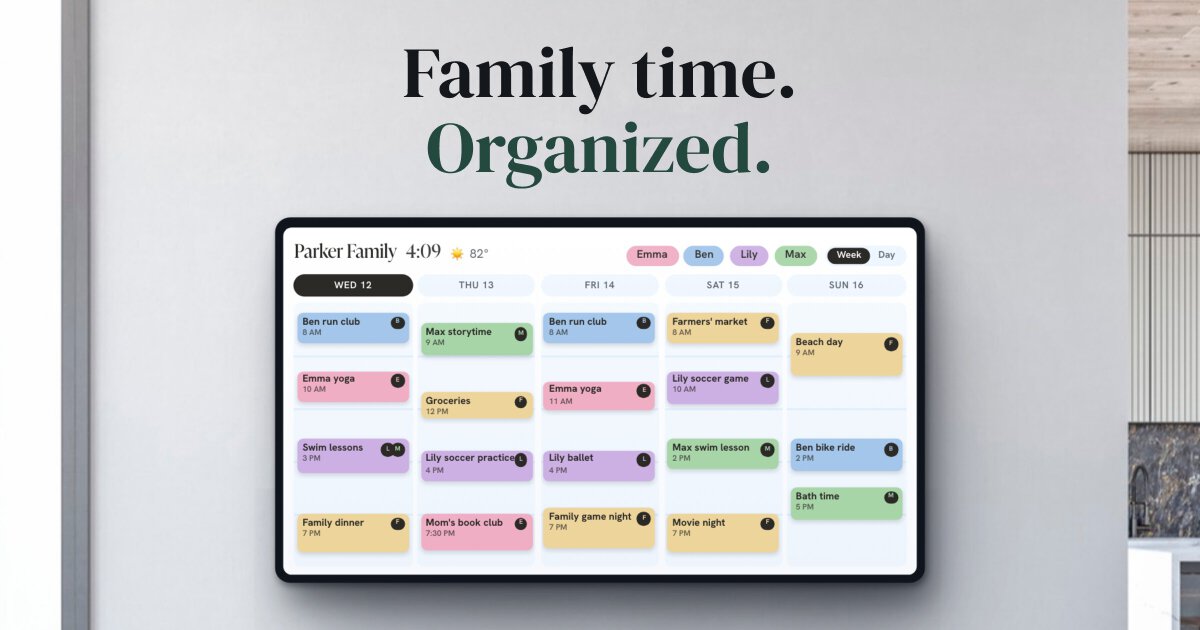
The biggest screen in most homes spends most of the day as a black rectangle. Every major streaming box can show your photos instead, usually for free, and usually from a setting most people never open. They differ in where the photos come from, what else shows on screen, and whether the TV switches itself off after a few hours. Here's how to set up each one, and what to know before you leave a TV on all day. (We make Callie, which adds the family calendar to the slideshow. It comes last. Details checked October 2026.)
The short version
| Photos from | Also shows | Cost | |
|---|---|---|---|
| Apple TV | iCloud Photos, any shared album | A clock, in the Portraits style | Free |
| Fire TV | Amazon Photos | Time, weather | Free; unlimited photo storage with Prime |
| Google TV | Google Photos albums | Time, weather | Free |
| Roku | Uploads or Google Photos | Free | |
| Samsung The Frame, LG Gallery+ | Your phone, USB, Google Photos (LG) | Paid art libraries | Comes with the TV |
| Callie | An iCloud or Google Photos shared album | Clock, next event, the family week | Free for now, then $3/month |
Apple TV
Open Settings → Screen Saver → Current Selection and choose Memories & Slideshows. From there you can pick your Memories, your Favorites, or one album, including a Shared Album someone else started. The quicker route: open the album in the Photos app on the Apple TV and choose Set as Screen Saver.
- Shared albums need one switch. Turn on Shared Albums under Settings → Profiles and Accounts → your profile → Photos. Only the Apple TV's default profile can show photos.
- Timing. Start After, on the same Screen Saver page, sets how long the Apple TV waits. Sleep After, under Settings → General, decides when it gives up and sleeps.
- Want a clock? The Portraits screensaver (Apple TV 4K, 2nd generation or later) picks your best photos of people, pets, and places and adds a clock. Memories & Slideshows doesn't show one.
Fire TV
Amazon calls it the Ambient Experience. It isn't on every Fire TV: it started on the Omni QLED TVs and the Fire TV Stick 4K Max (2nd generation), and the way to check yours is to look for it under Settings → Display & Sounds. It shows the time, the weather, and either art or your own photos.
- Photos come from Amazon Photos. Amazon doesn't offer Google Photos or iCloud here. Prime members get unlimited full-resolution photo storage; everyone else gets 5 GB.
- Timing. By default it starts after 5 minutes idle, after Amazon's screensaver ads.
- Widgets. Amazon's product pages mention calendar and sticky-note widgets, but its current help pages only cover the background. Check your own device before you count on them.
Google TV
On a Google TV Streamer or Chromecast with Google TV, open Settings → System → Ambient mode and choose Google Photos. You can pick albums you own or ones shared with you, and show or hide the time and weather. It's the easiest setup of the lot if your family already shares a Google Photos album.
Roku
Roku's old Photo Streams became Backdrops in 2026. You can upload photos or link Google Photos, though only one album plays at a time. To use it as a screensaver, set Backdrops to start on its own when the TV sits idle, then turn off Roku's regular screensaver so the two don't fight.
If you're buying a TV anyway: art TVs
A few TVs are built to look like a framed picture when they're off: matte screens, slim wall mounts, and a mode that shows art or your photos. Samsung The Frame takes your photos from the SmartThings app or a USB stick, has a motion sensor to switch off when the room's empty, and sells its Art Store library for $4.99 a month. LG Gallery+, on 2025 and later LG TVs, can play Google Photos and charges $5 a month for its 5,000-piece art library. Hisense's CanvasTV and Amazon's Ember Artline play the same game. All of them mean buying a new TV, so they're worth it only if you were replacing yours anyway.
Before you leave the TV on all day
- Power. A 55" LED TV draws around 57 watts and an OLED around 98 (RTINGS' estimates). A 10" photo frame draws about 5. Eight hours a day, the LED TV uses about 166 kWh a year, roughly $28 at 17 cents a kWh. Not nothing, and well under the price of most frames' subscriptions.
- Burn-in. On an OLED, the risk comes from things that don't move, like a clock in the corner, not from photos that change every few seconds. LG's OLEDs start their own screensaver after about two minutes of a still image, and both LG and Samsung shift pixels slightly to spread the wear. Keep the slideshow moving and you're using the TV the way those features expect.
- Auto power off. Samsung and LG TVs ship set to turn off after four hours without a button press, whatever's on screen. On a Samsung it's Auto Power Off under Eco Solution; on an LG it's in the timer settings (General → System → Time & Timer → Timers). Turn it off, or the frame goes dark mid-afternoon.
- Nights. A slideshow at 2 a.m. is wasted. Use the TV's sleep or off timer, or the streaming box's Sleep After, so it rests overnight.
Photos, plus what's happening today
Every screensaver above treats the TV as a frame and nothing else. In a kitchen or living room, the photo is nice and the schedule is useful, and you want both. That's what we built Callie for.
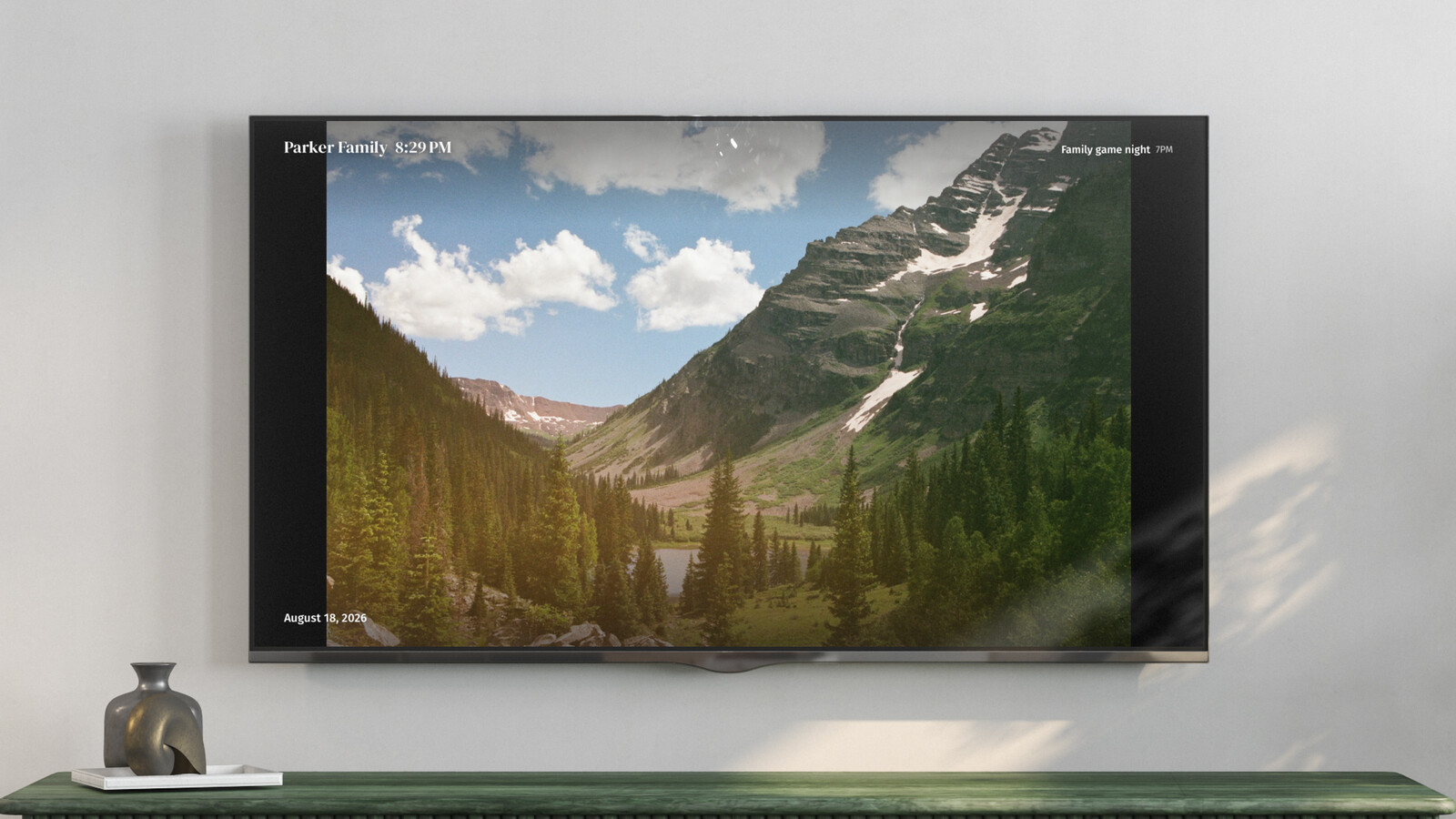
Callie shows the family week, each person in their own color, on an Apple TV, Fire TV, or Google TV (and iPads, Macs, and any web browser). After the board sits idle for a while (you pick, from 1 to 60 minutes) it switches to a slideshow from an iCloud Shared Album or a Google Photos shared album, with the clock and the next event still on screen. Press a button and the week is back.
- Same album on every screen. Anyone in the album adds photos from their phone, and they show up on every TV and tablet you've linked.
- Your photos stay with Apple or Google. Each screen loads them straight from the album. They never pass through or rest on our servers.
- The box stays awake. While Callie is open it keeps the Apple TV, Fire TV, or Google TV from dozing off, so the TV's own auto-off is the only setting to change.
It's free for now, then $3 a month or $30 a year per family. For the dedicated frames, from Aura to Skylight, see digital photo frames compared, and for devices that do photos and a calendar, photo frames with a calendar.