📺 Link your screens
Each screen shows a one-time 6-digit code; typing it into the web app links that screen to your family. Do it once per screen — link as many as you like.
1Open Callie on the device
During the beta, get Callie through TestFlight: the
iPhone & iPad link and the Apple TV link
(open them on your iPhone). Then open it.
On a phone or tablet, tap “Link this device”.
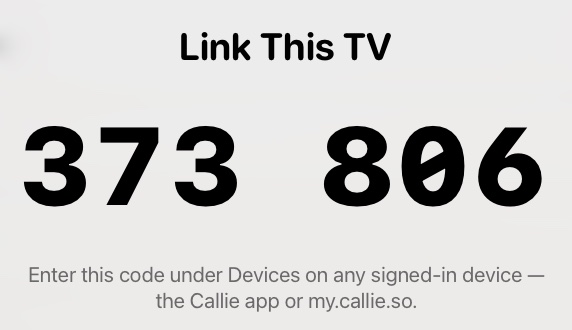
2It shows a 6-digit code
The code will appear on the screen or app. No need to retype your password on your
screen.
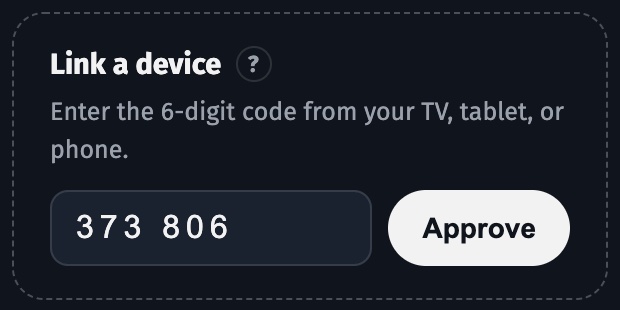
3Type it into the web app
Sign in at my.callie.so, open Household, enter the
code under “Link a device”, and press Approve. The screen connects within seconds.
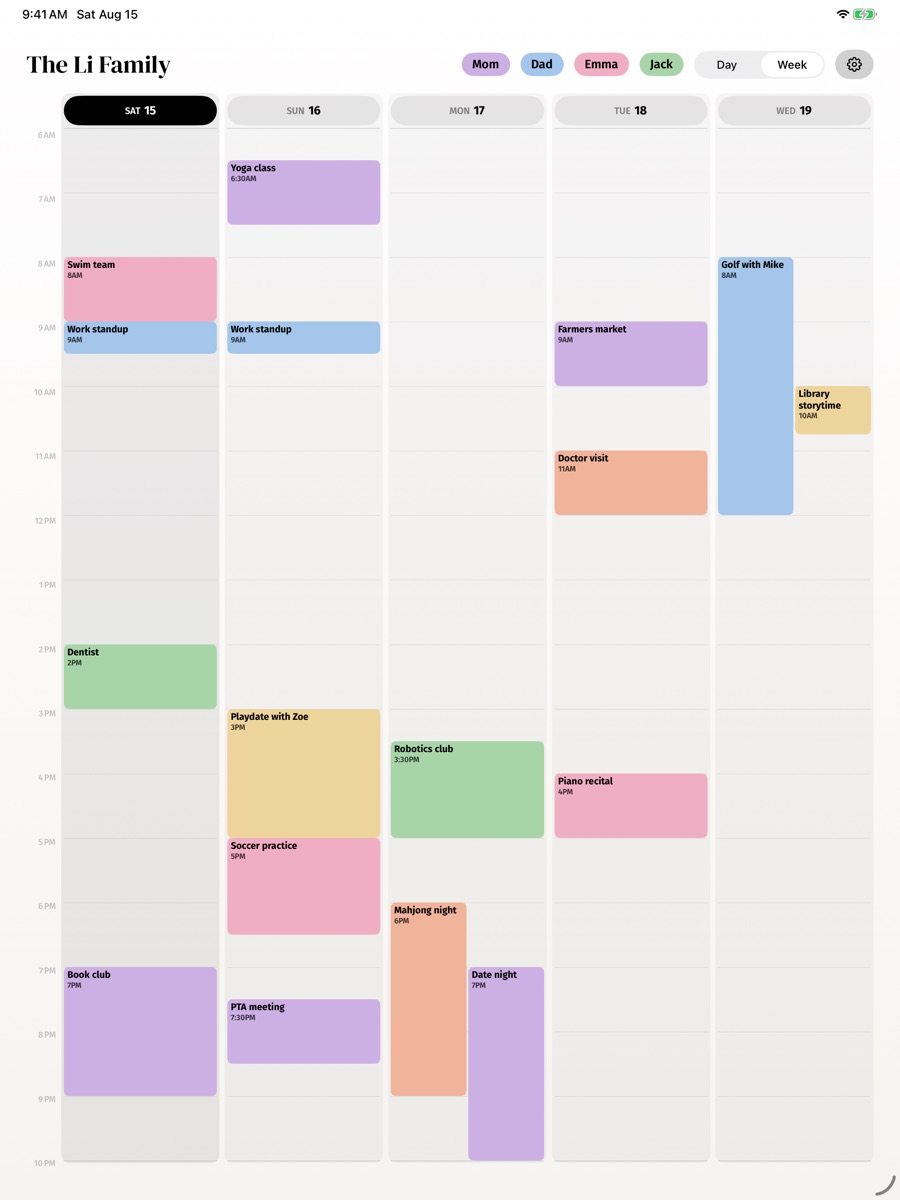
Each device can have a nickname ("Kitchen iPad", "Living room TV") and its own layout, so the TV can show the full week while the counter iPad shows today. Remove or rename devices from the same page.
The same code works for a browser and a TRMNL e-ink display too; see Supported devices.
If a screen ever shows a code again, its link was removed or expired — type the new code into the web and it reconnects with everything intact.
Keep going
- Create your family — Accounts, passkeys, and inviting up to five more adults.
- Add your calendars — Get the private feed link from iCloud or Google and paste it in.
- People, colors, and tagging — Everyone gets a color; Callie works out whose event is whose.
Stuck? Contact us for help.